


BLOG
Why is my website down?” — Common causes and how to diagnose them
4 min read
Matrix is proud to join PACE, now launched in Moldova. The Erasmus+ project strengthens youth organisations across the region with training, digital resources and collaboration to support displaced Ukrainian young people.
A website that suddenly goes offline is every site owner’s nightmare. Whether you run a small blog, an e-commerce store, or a business landing page, downtime costs you visitors, revenue, and trust. The good news is that most causes of downtime follow predictable patterns, and with the right checklist you can diagnose the problem in minutes and have your site back online fast.
This guide covers the eight most common reasons websites go down, how to identify which one is affecting you, what each error code actually means, and what you can do to prevent it from happening again.
Step 1: Confirm It Is Actually Down
Before you start troubleshooting your server, confirm that the problem is not on your end. Sometimes a browser cache issue, a local network problem, or a VPN can make a site appear down only to you while it remains perfectly accessible to everyone else.
Use one of these tools to check from an outside perspective:
- isitdownrightnow.com — simple pass/fail check from multiple locations
- downforeveryoneorjustme.com — enter your URL and get an instant answer
- ping.pe — pings your domain from dozens of global locations simultaneously
If the site is only down for you, the fix is usually simple: clear your browser cache, try a different browser or device, disable your VPN, or flush your DNS cache. On Windows, open Command Prompt and run ipconfig /flushdns. On Mac, run sudo dscacheutil -flushcache in Terminal.
If the site is down for everyone, read on.
The 8 Most Common Causes of Website Downtime
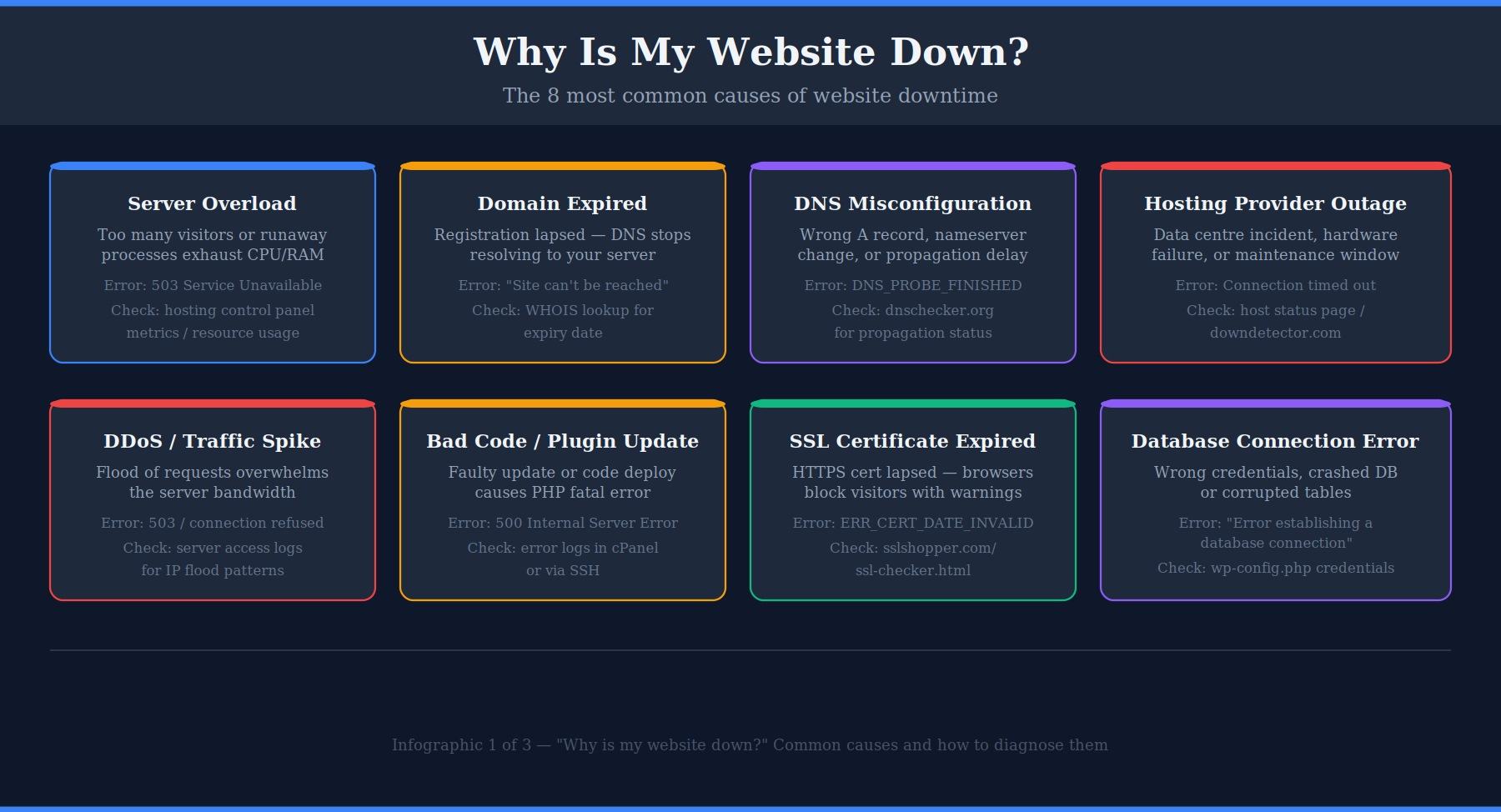
1. Hosting Provider Outage
Your hosting provider’s infrastructure — the physical servers, networking equipment, or data centre — can fail or go offline for maintenance. This is entirely outside your control, but it is also usually resolved quickly by the host.
How to confirm it: Visit your hosting provider’s status page. Most providers maintain a public status page (for example, status.siteground.com or status.wpengine.com). You can also check Downdetector.com and search for your host’s name to see if other customers are reporting problems.
What to do: There is little you can do except wait and monitor. If the outage persists beyond a few hours without communication from your host, contact their support team. Frequent unexplained outages are a sign you should consider switching to a more reliable host.
2. Server Resource Overload
Every hosting plan has limits on CPU usage, RAM, and the number of simultaneous connections it can handle. When your site exceeds those limits — either due to a sudden traffic spike, a runaway process, or poorly optimised code — the server becomes unable to respond to new requests and effectively goes offline.
How to confirm it: Log into your hosting control panel (cPanel, Plesk, or your host’s dashboard) and look at your resource usage graphs. If CPU or RAM usage is spiking to 100%, this is your culprit. You may also see a 503 Service Unavailable error in the browser.
What to do: In the short term, restart the web server process if your host allows it. Identify and kill any runaway PHP or MySQL processes. In the longer term, consider upgrading your hosting plan, enabling caching to reduce server load, or optimising slow database queries.
3. Domain Name Expired
Domain names are rented on annual (or multi-year) contracts. If your payment fails or you simply forget to renew, the domain registration lapses. Once expired, your domain’s DNS stops pointing to your server, and visitors see a registrar holding page or a “This site can’t be reached” error.
How to confirm it: Do a WHOIS lookup at who.is or whois.domaintools.com. Search for your domain name and look at the “Expiry Date” field. If it is in the past, your domain has expired.
What to do: Log into your domain registrar immediately and renew the domain. Most registrars offer a grace period of 30 days after expiry during which you can renew at the normal price. After renewal, DNS propagation can take up to 48 hours before your site is fully accessible worldwide, though it is usually much faster.
4. DNS Misconfiguration
Your domain’s DNS records tell the internet where to find your website. If you recently changed hosts, updated nameservers, or accidentally edited a DNS record, visitors may be directed to the wrong server or nowhere at all.
How to confirm it: Visit dnschecker.org and enter your domain. It will show you which DNS servers around the world are returning for your domain and what IP address they are pointing to. If results are inconsistent or pointing to the wrong IP, you have a DNS issue.
What to do: Log into your domain registrar or DNS provider and verify your A record points to your server’s correct IP address. DNS changes can take up to 48 hours to propagate globally, though most updates resolve within a few hours. If you recently migrated hosts, double-check that the nameservers have been updated correctly.
5. SSL Certificate Expired
HTTPS requires a valid SSL certificate. Certificates are issued for fixed periods (typically 90 days for Let’s Encrypt, or one year for paid certificates). When a certificate expires, browsers display a full-page security warning that effectively blocks most visitors from accessing your site, even though the site itself is technically online.
How to confirm it: Click the padlock icon in your browser’s address bar and check the certificate details, or use sslshopper.com/ssl-checker.html to scan your domain. An expired or invalid certificate will be flagged immediately.
What to do: If you manage your own certificate, renew it through your certificate authority. If your host provides SSL (most managed hosts do), contact their support or look for a “Renew SSL” option in your control panel. To avoid this recurring, enable auto-renewal wherever your SSL is managed.
6. Bad Code or Plugin Update
A faulty plugin update, a theme conflict, or an error in code you have just deployed can cause a PHP fatal error that crashes your entire site. This is one of the most common causes of unexpected downtime on WordPress sites, since plugin updates are frequent and not always thoroughly tested.
How to confirm it: Look for a 500 Internal Server Error or a white screen (known as the White Screen of Death in WordPress). Check your server error logs — in cPanel, go to Logs → Error Log. The log will usually name the specific file and line number causing the crash.
What to do: If you updated a plugin or theme just before the site went down, deactivate it via FTP (rename the plugin folder in wp-content/plugins/ so WordPress cannot load it). If you deployed new code, roll back to the previous version. If you cannot identify the cause, restore from your most recent clean backup.
7. Database Connection Error
WordPress and most CMS platforms store all content in a database. If the database server crashes, runs out of disk space, or the credentials in your configuration file no longer match the database user, your site will display “Error establishing a database connection” and will be completely inaccessible.
How to confirm it: The error message is usually explicit. You can also try logging into phpMyAdmin through cPanel to see if the database server responds. If phpMyAdmin fails to connect, the database server itself may be down.
What to do: First, check that the database credentials in wp-config.php match the actual database name, username, and password in your hosting panel. If credentials are correct, try repairing the database using phpMyAdmin (select your database, click “Check all”, then choose “Repair table” from the dropdown). If the database server itself is down, contact your hosting provider.
8. DDoS Attack or Sudden Traffic Spike
A Distributed Denial of Service (DDoS) attack floods your server with enormous volumes of fake traffic, overwhelming it until it cannot respond to legitimate visitors. A genuine viral traffic spike — from being featured in a popular newsletter, for example — can have the same effect.
How to confirm it: Check your server’s access logs for an unusual volume of requests, particularly from a large number of IP addresses in a short time window. Your hosting panel may also show bandwidth or request rate spikes in its analytics.
What to do: Enable Cloudflare (even the free tier) immediately — it can absorb DDoS traffic before it reaches your origin server and continue serving cached pages to real visitors. Contact your host, as many providers have DDoS mitigation tools available. For persistent attacks, consider a dedicated DDoS protection service.
Reading HTTP Error Codes
When your site goes down, the error code in the browser is often your first clue about what went wrong. Here is what the most common codes mean and where to look for the fix:
- 400 Bad Request — The server cannot process the request. Often caused by a corrupted .htaccess file or malformed URL rewrite rules. Start by regenerating your .htaccess from WordPress Settings → Permalinks.
- 401 Unauthorised — A password-protected page is rejecting credentials. Check whether password protection was accidentally applied to your entire site in cPanel.
- 403 Forbidden — The server can see the file but refuses to serve it. Almost always a file permissions problem. Directories should be set to 755 and files to 644.
- 404 Not Found — The specific page does not exist. If your entire site is returning 404s, your .htaccess file is likely missing or broken.
- 500 Internal Server Error — A PHP crash on the server. Check your error logs for the specific cause. Common triggers: exhausted PHP memory limit, bad plugin, or syntax error in wp-config.php.
- 502 Bad Gateway — The server received an invalid response from an upstream service, such as PHP-FPM or a reverse proxy. Usually a server configuration issue your host needs to resolve.
- 503 Service Unavailable — The server is too overloaded or in maintenance mode to handle the request. Check resource usage and whether maintenance mode is active.
- 504 Gateway Timeout — A request took too long to complete. Usually caused by a slow database query or a PHP script that exceeds the server’s execution time limit.
How to Diagnose Downtime in 5 Minutes
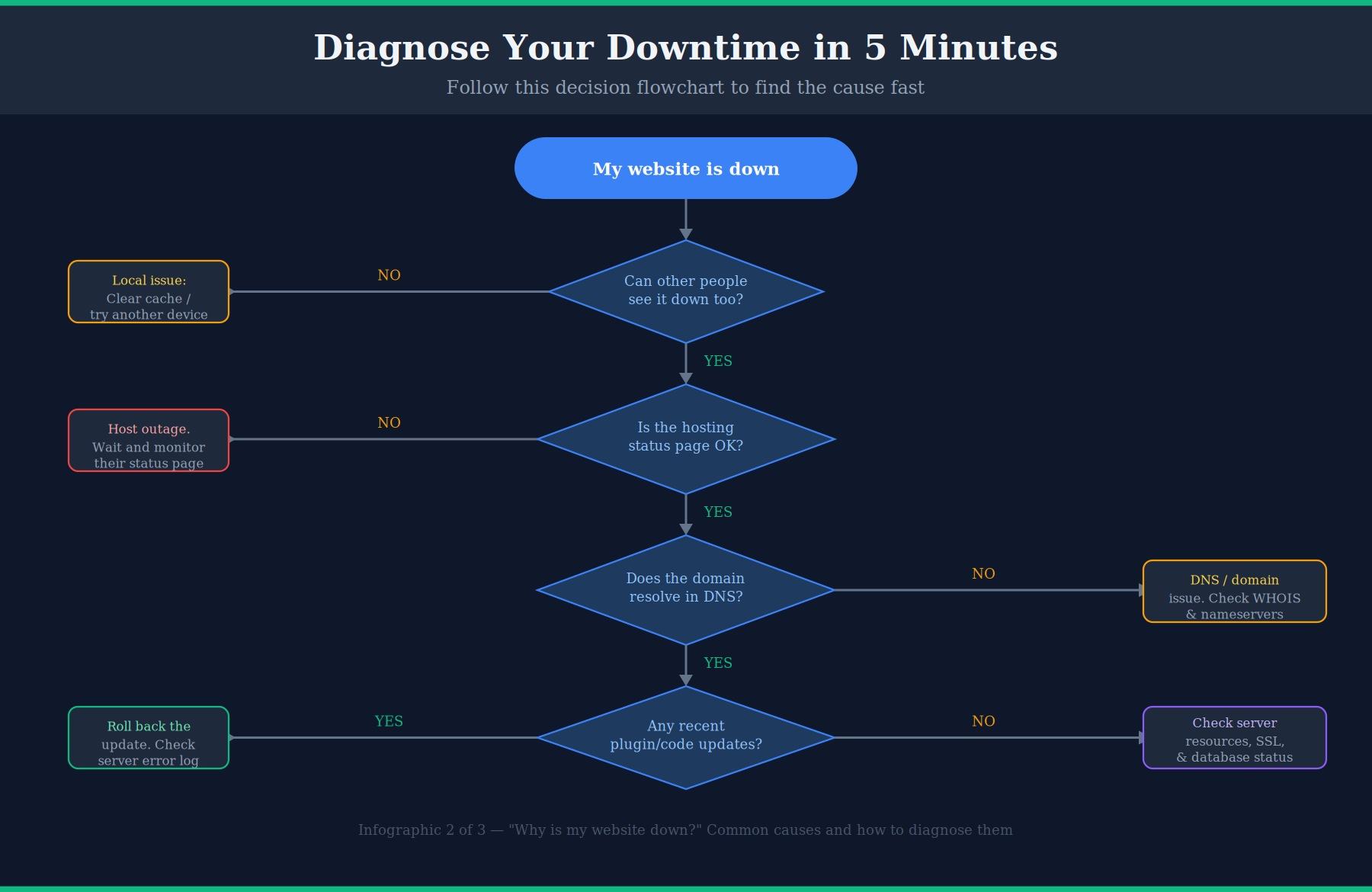
When your site goes down, work through this checklist in order. Most problems can be identified within the first three checks:
- Confirm it is down for everyone — use isitdownrightnow.com. If it is only down for you, clear your cache and DNS.
- Check your host’s status page — if the host is having an outage, your only job is to wait.
- Do a WHOIS lookup — confirm the domain has not expired.
- Check DNS propagation — use dnschecker.org to confirm your A record points to the right IP.
- Check your SSL certificate — use sslshopper.com to confirm it is valid and not expired.
- Review recent changes — did you update a plugin, deploy new code, or change a server setting in the last 24 hours? Roll it back.
- Check server error logs — in cPanel, Logs → Error Log. The log usually names the specific file and line causing a crash.
- Test database connectivity — open phpMyAdmin and verify the database server responds. Check credentials in wp-config.php.
How to Prevent Website Downtime
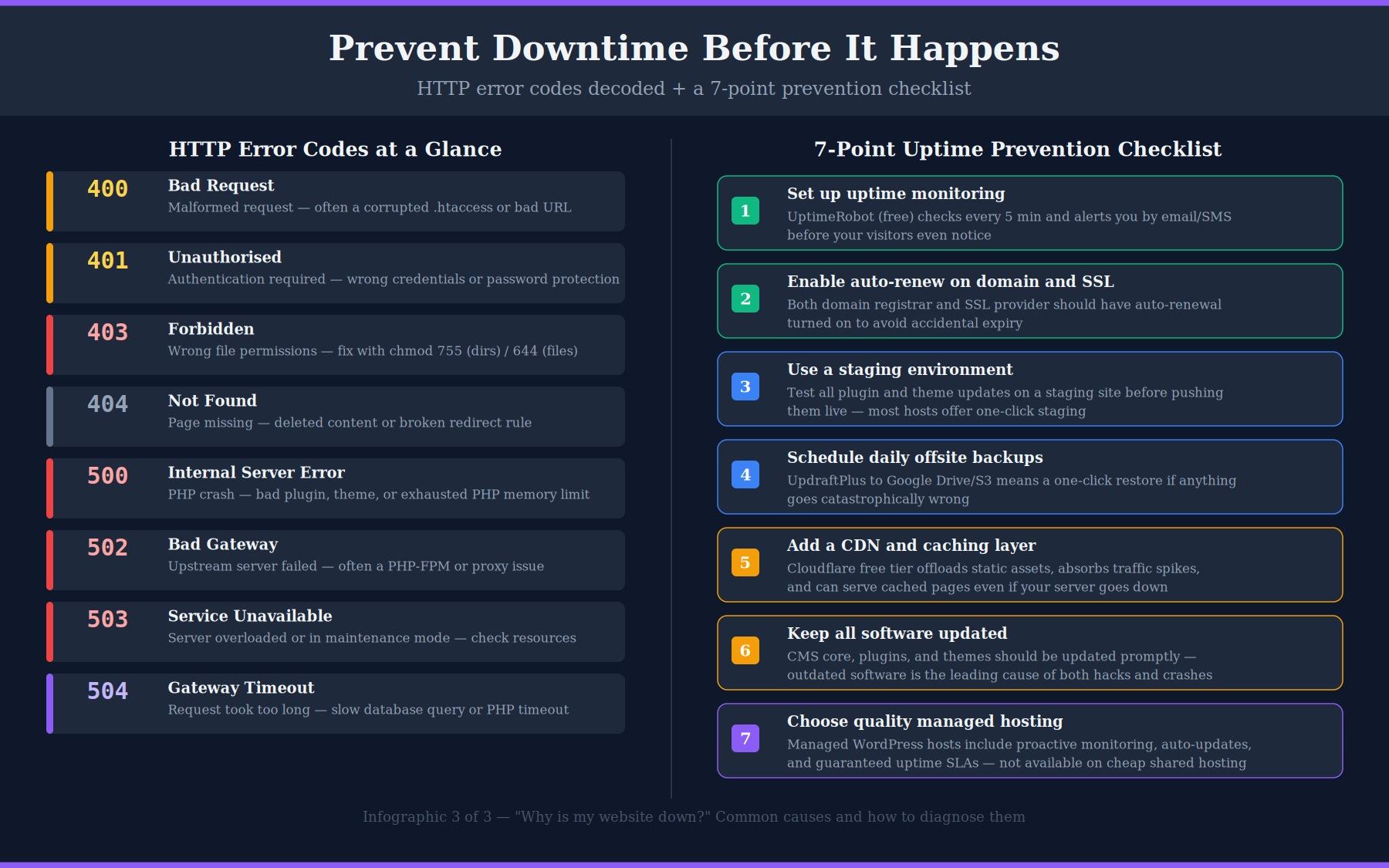
The best time to prevent downtime is before it happens. These steps significantly reduce both the frequency and the duration of any outage you do experience:
Set up uptime monitoring
UptimeRobot (free) checks your site every five minutes from multiple locations and alerts you by email or SMS the moment it detects downtime. Without monitoring, you may not know your site is down until a customer or colleague tells you — often hours later. Setup takes under five minutes at uptimerobot.com.
Enable auto-renewal on your domain and SSL
Log into your domain registrar and verify that auto-renewal is enabled and that your payment method is current. Do the same for your SSL certificate provider. Expiry-related downtime is entirely preventable and yet remains one of the most common causes of outages.
Use a staging environment for updates
Never update plugins, themes, or core files directly on your live site. Most managed WordPress hosts (SiteGround, WP Engine, Kinsta) offer one-click staging environments where you can test updates safely before pushing them live. This eliminates the risk of a bad update taking your production site offline.
Schedule daily offsite backups
Configure a plugin like UpdraftPlus to back up your site daily to a remote location such as Google Drive or Amazon S3. If the worst happens, you can restore a clean version of your site in minutes rather than rebuilding from scratch. Test your backups periodically — a backup you have never restored is a backup you cannot trust.
Add a CDN and caching layer
Cloudflare’s free tier sits between your visitors and your server, caching static content globally and absorbing traffic spikes. Even if your origin server goes offline, Cloudflare can continue serving cached pages to visitors in some configurations. It also provides basic DDoS protection at no cost.
Keep all software up to date
Outdated plugins, themes, and CMS core files are the leading cause of both security breaches and compatibility crashes. Enable automatic updates for minor WordPress versions and security releases. For major updates, test on staging first. Remove any plugin or theme you are not actively using.
Choose quality managed hosting
Cheap shared hosting puts your site on the same server as hundreds or thousands of other sites. One badly coded site on that server can affect everyone. Managed WordPress hosting providers include proactive malware scanning, automatic updates, server-level caching, and uptime SLAs — none of which are available on entry-level shared hosting.
When to Contact Your Hosting Provider
You should contact your host immediately if:
- The site has been down for more than 30 minutes with no obvious cause on your end
- Server error logs show database server errors you cannot resolve
- Your hosting control panel itself is inaccessible
- You suspect a DDoS attack that is exceeding what Cloudflare can absorb
- The host’s status page shows an active incident affecting your region
When contacting support, provide: your domain name, the error code or message you see, the approximate time the downtime started, any recent changes you made, and what you have already tried. The more context you give, the faster they can identify and resolve the issue.
Summary
Website downtime is almost always caused by one of eight things: a hosting outage, server overload, an expired domain, a DNS misconfiguration, an expired SSL certificate, a bad code or plugin update, a database error, or a traffic attack. Working through the five-minute diagnosis checklist above in order will identify the cause in the vast majority of cases.
The most important thing you can do right now, before your site ever goes down, is to set up free uptime monitoring at UptimeRobot. Knowing about downtime within minutes — rather than hours — makes every other step in this guide dramatically easier.
At Matrix Internet, our technical support team helps businesses identify the cause of website downtime fast, resolve it, and put the right measures in place to stop it happening again.
FAQs
Use a free tool like isitdownrightnow.com or downforeveryoneorjustme.com. Enter your domain and it will check from multiple locations worldwide. If the site is only down for you, the fix is usually simple — clear your browser cache, try a different device, or flush your DNS cache. If it is down for everyone, you have a server-side problem to investigate.
The most common causes are hosting provider outages, expired domain names, and bad plugin or code updates — particularly on WordPress sites. Hosting outages are largely outside your control, but domain expiry and plugin-related crashes are entirely preventable with auto-renewal enabled and a staging environment for testing updates before they go live.
DNS changes can take anywhere from a few minutes to 48 hours to propagate fully across the internet, depending on the TTL (Time to Live) value set on your DNS records. In practice, most visitors will see the updated DNS within 1 to 4 hours. You can monitor propagation progress in real time at dnschecker.org.
A 500 error means something crashed on the server — most commonly a PHP fatal error triggered by a faulty plugin, a theme conflict, or a memory limit being exceeded. To fix it, check your server error logs in cPanel under Logs → Error Log. The log will usually name the exact file causing the problem. If a recent plugin update is the cause, deactivate it by renaming its folder via FTP and the site will recover immediately.
By Matrix Internet


