


BLOG
Lazy Loading Your Hero Image Makes Your Site Slower: How to Fix LCP
4 min read
Matrix is proud to join PACE, now launched in Moldova. The Erasmus+ project strengthens youth organisations across the region with training, digital resources and collaboration to support displaced Ukrainian young people.
Lazy loading is one of the first things every speed guide recommends. Turn it on, and images only download when a visitor scrolls near them. Less data, faster page.
Except for one image: the big one at the top. Lazy load your hero image and the page gets slower at the exact moment Google measures it. It is one of the most common faults we find when we review a site’s web design and performance together, and it is usually not something anyone switched on deliberately.
This guide explains why it happens, how to check your own site, and how to fix it on WordPress and on any other site.
What Lazy Loading Actually Does
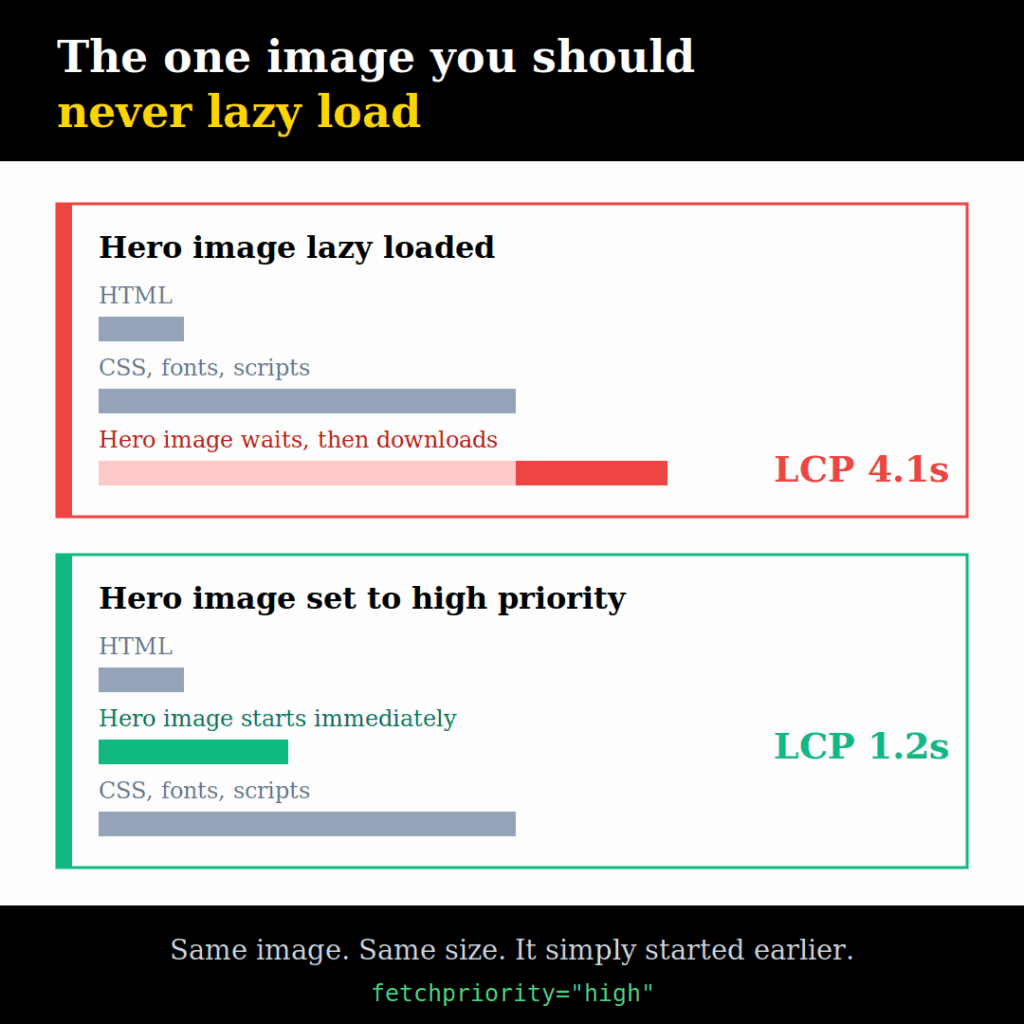
Normally, a browser starts downloading images as soon as it finds them in the page code. With lazy loading (loading="lazy"), it waits. It first works out the page layout, checks which images are on screen or close to it, and only then downloads those. The MDN reference for the <img> element describes exactly how the attribute behaves.
For images further down the page, that is exactly what you want. For the image visitors see first, it is a delay you have added on purpose.
Think of it like a restaurant that waits until you are seated and have read the menu before it starts cooking the starter you ordered when you booked. Fine for dessert. Not for the first course.
Why It Hurts LCP
LCP (Largest Contentful Paint) measures how long it takes for the biggest thing on screen to appear. On most sites, that is the hero image, a banner, or the main photo. A good LCP is 2.5 seconds or less. It is one of Google’s Core Web Vitals, and Google’s own guide to optimising LCP treats late-starting images as one of the main causes of a poor score.
When the LCP image is lazy loaded:
- The browser cannot start the download until the layout is worked out.
- It gives the image a low priority, so CSS, scripts and fonts go first.
- If lazy loading is done by a JavaScript plugin rather than the browser’s built-in version, the image waits until that script has downloaded and run, too.
The image itself is no bigger. It just starts late. In PageSpeed, this shows up as a large Resource load delay.
This matters more than it sounds, because the hero is a web design decision before it is a technical one. The image at the top of the page is usually the largest, most carefully chosen thing on the site, and it is the one element you cannot afford to have arrive late.
Where the Lazy Loading Comes From
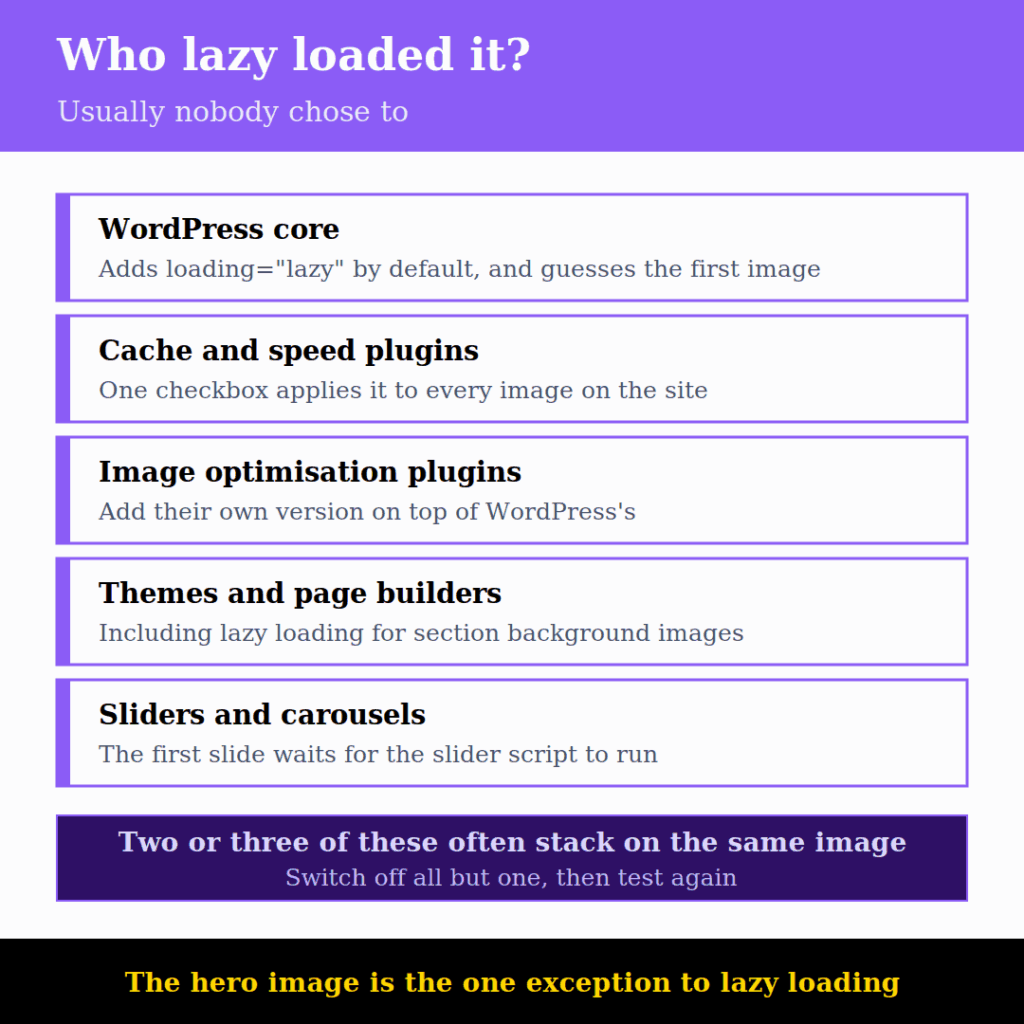
You often did not turn it on yourself. The usual sources:
- WordPress itself. Since version 5.5, WordPress adds
loading="lazy"to images automatically. Newer versions try to skip the first image, but they guess, and the guess can be wrong with page builders, sliders or a logo above the hero. - Cache and speed plugins. Many have a “Lazy load images” checkbox that applies to every image unless you exclude some.
- Image optimisation plugins. Some add their own lazy loading on top of WordPress’s.
- Themes and page builders, including lazy loading for background images.
- Sliders and carousels. The slide images are often only loaded when the slider script starts, which is lazy loading in all but name.
It is common to find two or three of these stacked on the same image.
Step 1: Find Your LCP Element
PageSpeed Insights. Run your page through pagespeed.web.dev and check both Mobile and Desktop, as the LCP element can be different. Expand these two sections:
- LCP breakdown: shows which element is the LCP, and how long each part took. A high Resource load delay means the image started downloading late.
- LCP request discovery: checks three things directly: that the LCP image is not lazy loaded, that it has
fetchpriority="high", and that it can be found in the page code straight away.
The LCP element is not always what you expect. It can be the logo, a heading, or a background image.
Chrome developer tools. Open the page, then the console (Cmd + Option + J on Mac, Ctrl + Shift + J on Windows), paste this and reload:
new PerformanceObserver(list => {
  const e = list.getEntries().at(-1);
  console.log('LCP:', Math.round(e.startTime) + 'ms', e.element);
}).observe({ type: 'largest-contentful-paint', buffered: true });
It prints the LCP time and the element. Click the element to jump to it in the page code.
Step 2: Check How the Image Is Loaded
With the LCP element selected in the Elements tab, look at its attributes:
loading="lazy": the browser’s built-in lazy loading. Remove it on this image.data-srcordata-lazy-srcinstead ofsrc, or a class likelazyload: a JavaScript plugin is lazy loading it. Usually worse than the built-in version.- No
<img>at all, just abackground-imagein the styles: a CSS background. The browser only finds it after the CSS has loaded. - No
fetchpriority="high": not wrong, but a missed opportunity.
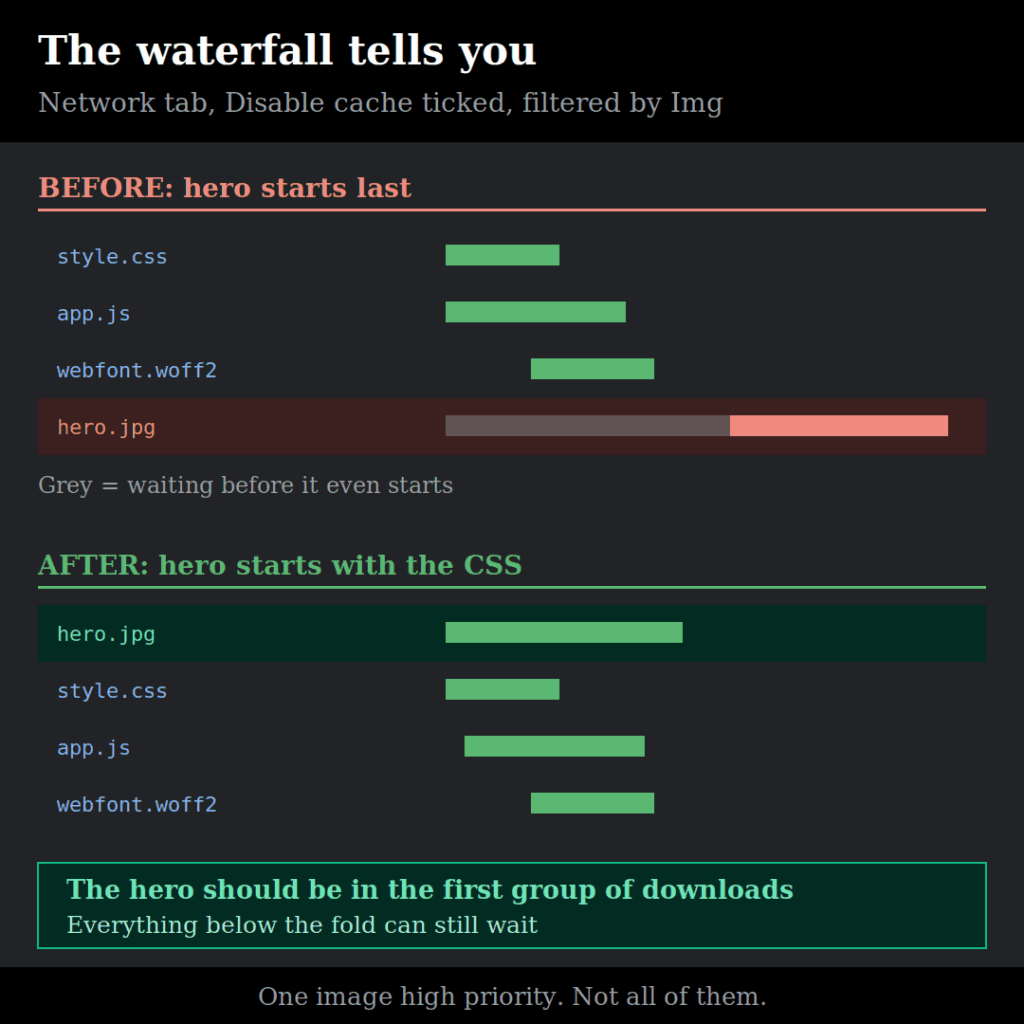
To confirm the effect, open the Network tab, tick Disable cache, filter by Img, and reload. If the hero image starts late in the waterfall, after scripts and fonts, it is being held back.
Step 3: Stop Lazy Loading the Hero
On WordPress
Elementor: go to Elementor → Settings → Performance and enable Optimized Image Loading. It adds fetchpriority="high" to the image it thinks is the LCP and lazy loads only images further down. If the hero is a section background, check that Lazy Load Background Images leaves the first one alone, which it is designed to do. Then go to Elementor → Tools → Clear Files & Data.
Cache and image plugins: look for one of these in the lazy load settings:
- “Skip first X images” or “Exclude above the fold”: set it to cover the logo and the hero, usually 1 to 3.
- “Excluded images” or “Excluded classes”: add the hero image’s file name or CSS class.
If you have more than one tool doing lazy loading, switch off all but one. Then check the page again, as the other tools may still be adding their own.
One image, by hand: if a single image keeps getting lazy loaded, add this to your theme’s functions.php or a code snippets plugin, replacing the file name:
add_filter( 'wp_img_tag_add_loading_optimization_attrs', function ( $value, $image ) {
    if ( str_contains( $image, 'hero-image' ) ) {
        return false;
    }
    return $value;
}, 10, 2 );
Test it on staging first. Hooks like this change between WordPress versions, which is also a good reason to keep a staging copy and a support arrangement for the site rather than editing a live theme file.
On Any Other Site
Remove loading="lazy" from the hero and add fetchpriority="high":
<img src="/images/hero.jpg"
     width="1600" height="900"
     fetchpriority="high"
     alt="Description of the image">
Keep lazy loading on everything below the fold. That part of the advice is still right.
Step 4: Help the Browser Find It Early
Add fetchpriority=”high”
This tells the browser the image matters more than other downloads. Google’s Fetch Priority guide is worth reading if you want the detail. Use it on one image per page: the LCP. If every image is high priority, none of them are.
Preload Background Images
If the hero is a CSS background, the browser cannot see it in the page code. Preload it in the <head> so the download starts straight away:
<link rel="preload" as="image" href="/images/hero.jpg" fetchpriority="high">For a responsive image, add imagesrcset and imagesizes so the browser picks the right size. Better still, if you can, switch the hero from a background to a normal <img>, which the browser finds on its own.
Rethink Sliders Above the Fold
A hero slider usually means the first image waits for the slider script to load and run. If you keep one:
- Make sure the first slide is a normal
<img>in the page code, not added by JavaScript. - Do not lazy load the first slide. Lazy load the rest.
- Ask whether the slider earns its place. A single strong image is faster, and most visitors never see slide three.
This is where performance and UX and UI design meet. Sliders are often added to satisfy several internal stakeholders at once, and the cost lands on the one metric Google watches most closely.
Step 5: Make the Image Itself Lighter
Once it starts on time, the download should also be quick:
- Resize it. A hero rarely needs more than 1600 to 2000px wide. Phone photos at 4000px are common, and wasteful.
- Compress it properly. A well-compressed JPEG is usually enough. WebP and AVIF are smaller again, though some media libraries need a plugin before they will accept them.
- Serve smaller versions to phones with
srcset. WordPress does this automatically for images added through the media library. - Set width and height. This reserves the space so the page does not jump when the image arrives. That is CLS, a separate Core Web Vital.
- Check the logo too. If the logo is the LCP element, a 700px file shown at 190px is an easy fix.
Step 6: Test Again
- Clear all caches: the page builder, your cache plugin, and your CDN such as Cloudflare.
- Re-run PageSpeed. In LCP request discovery, all three checks should pass. In LCP breakdown, the resource load delay should drop.
- In the Network tab, the hero image should start early in the waterfall, alongside the CSS.
- Check mobile and desktop separately.
PageSpeed’s lab score updates straight away. The field data from real visitors takes about 28 days to catch up, so give it a month before you judge the result in Search Console.
If the hero image is now starting on time and the page still feels slow, the problem is further down the stack. Our guide to speeding up a WordPress website covers the server, DNS and caching side of it.
Quick Checklist
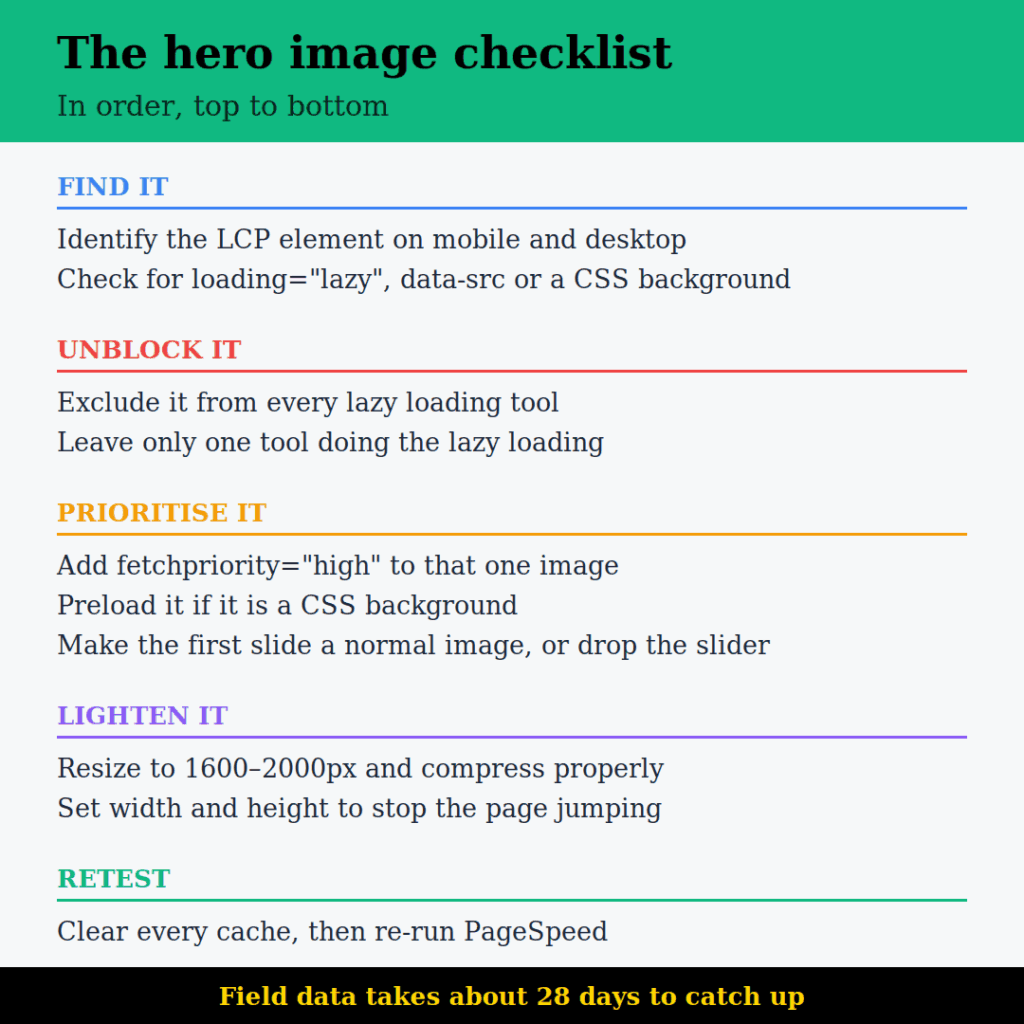
- Find the LCP element on mobile and desktop.
- Check it for
loading="lazy",data-srcor a CSS background. - Exclude it from every lazy loading tool, and use only one tool.
- Add
fetchpriority="high"to that one image. - Preload it if it is a background image.
- Avoid sliders above the fold, or make the first slide a normal image.
- Resize and compress it, and set width and height.
- Keep lazy loading for everything below the fold.
- Clear caches and re-test.
Most of this is a half-hour job once you know which image to look at. The harder version of the problem is a site where the hero, the slider and the page builder were never set up with performance in mind, in which case the fix belongs in the next website build rather than in a plugin setting.
Slow hero, heavy page, or a site that never quite felt fast after launch? Our web design and development teams fix Core Web Vitals on live sites every week — get in touch and we’ll tell you what’s actually holding your page back.
FAQs
No. Lazy loading is genuinely useful for everything below the fold, and switching it off site-wide means every image on a long page downloads at once, which slows things down in a different way. The fix is narrower than that: exclude the one image that appears first on screen, and leave the rest alone. Most plugins have a "skip first X images" setting that does exactly this. The only time to switch a tool off entirely is when two or three plugins are all lazy loading the same image, in which case you want one tool handling it, not three.
Run the page through PageSpeed Insights and open the LCP breakdown section, which names the element directly. Do it for mobile and desktop separately, because they are often different. If you want to check it live, the small console snippet in this guide prints the element and the time on any page load. The answer surprises people more often than you would think. On sites with a small hero or a text-heavy top section it can be the logo, a heading, or a background image rather than the main photo.
Because lazy loading is only one of the things that can delay an image. If the hero is a CSS background, the browser cannot see it until the stylesheet has loaded, so it needs preloading. If it is the first slide of a slider, it may be added by JavaScript and waits for that script. If a plugin is using data-src instead of src, the browser does not know the image exists at all until the plugin's script runs. Check the element in the Elements tab and confirm there is a real src in the page code.
It is supported in Chrome and Edge, and in Safari and Firefox in recent versions. Where it is not supported, the browser simply ignores it, so there is no downside to adding it. The important thing is to use it once per page. The attribute works by telling the browser that one download matters more than the others, so applying it to a gallery of images cancels out the benefit. One hero image, one high priority, everything else left at the default.
The lab score in PageSpeed updates the moment you re-run the test, so you will know within minutes whether the fix worked technically. The field data is different. It comes from real visitors over a rolling 28-day window, so Search Console and the field section of PageSpeed will keep showing the old figures for roughly a month while the new data accumulates. Make the change, confirm it in the lab score, and check back in four weeks rather than four days.
By Srdjan


