


BLOG
Fixing Plugin Conflicts in WordPress: A Step-by-Step Guide
4 min read
Matrix is proud to join PACE, now launched in Moldova. The Erasmus+ project strengthens youth organisations across the region with training, digital resources and collaboration to support displaced Ukrainian young people.
Plugin conflicts are one of the most common causes of WordPress problems — and one of the most misunderstood. A site that was running perfectly yesterday can suddenly show a blank screen, a broken admin dashboard, or strange visual glitches the moment a plugin is updated or a new one is added. Knowing how to identify, isolate and fix the conflict quickly — and how to avoid it happening again — is an essential skill for anyone managing a WordPress site.
This guide walks through everything: how to recognise the signs of a plugin conflict, the step-by-step process for finding which plugin is responsible, all four ways to resolve it once found, and seven habits that prevent conflicts from occurring in the first place.
What Is a Plugin Conflict?
A plugin conflict occurs when two or more plugins — or a plugin and your active theme — interfere with each other’s code. WordPress works by layering PHP code, JavaScript, and CSS from your core installation, your theme, and every active plugin. When two plugins try to define the same function, load incompatible versions of the same JavaScript library, or register hooks that interfere with each other, the result is a crash, a broken feature, or unexpected visual behaviour.
Conflicts can also occur between a plugin and a specific version of WordPress core. When WordPress releases a major update, plugins that have not been updated to match the new version’s API can break — sometimes silently, sometimes catastrophically.
The defining characteristic of a plugin conflict — as opposed to other types of WordPress errors — is that the problem appeared immediately after a specific action: installing a new plugin, updating an existing one, or updating WordPress core itself. If you can identify that triggering action, you already have your primary suspect.
Recognising the Signs of a Plugin Conflict
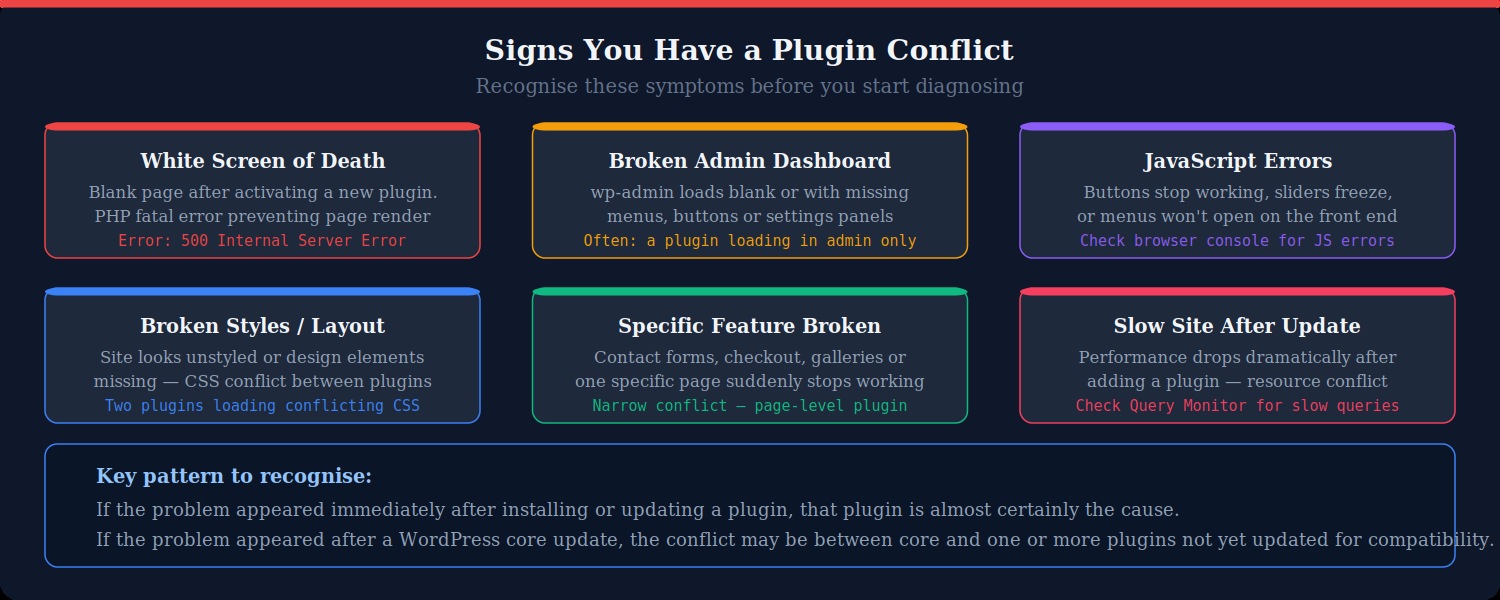
Plugin conflicts manifest in several distinct ways, each of which gives you clues about where to look:
White Screen of Death
A completely blank page — on the front end, the admin dashboard, or both — is one of the most alarming symptoms and almost always indicates a PHP fatal error. When a plugin introduces code that crashes PHP, WordPress cannot complete the page render and serves nothing instead. The site is effectively down.
Broken admin dashboard
If the front end of your site loads normally but wp-admin is broken — showing a blank page, missing menu items, or non-functional settings panels — the conflict is likely in a plugin that only runs in the admin area. This narrows the field considerably, since many plugins load their admin-specific code only in the backend.
JavaScript errors on the front end
When buttons stop working, dropdown menus freeze, sliders break, or interactive elements fail silently, the cause is usually a JavaScript conflict. Two plugins loading different versions of jQuery, or two plugins registering the same JavaScript variable name, will produce exactly this kind of breakage. Open your browser’s developer console (F12 in Chrome or Firefox) and look for red error lines — these will identify which scripts are conflicting.
Broken layouts or unstyled content
If your site’s design suddenly looks wrong — elements out of place, fonts missing, colours changed, the layout collapsed — two plugins are loading conflicting CSS. One plugin’s stylesheet is overriding or breaking another’s. This type of conflict is usually less severe than a PHP crash but can still significantly affect user experience.
One specific feature stops working
If your contact form, WooCommerce checkout, image gallery, or booking system suddenly stops functioning while everything else remains normal, the conflict is likely limited to the plugin handling that specific feature, and probably triggered by a recent update to that plugin or a plugin it interacts with.
Performance degradation
A dramatic slowdown immediately after installing a plugin is a sign of a resource conflict — two plugins running competing database queries, redundant caching operations, or both trying to handle the same server-side process. Install the free Query Monitor plugin to see which queries are running on each page load and which plugins are responsible for slow ones.
Step-by-Step: How to Find and Fix a Plugin Conflict
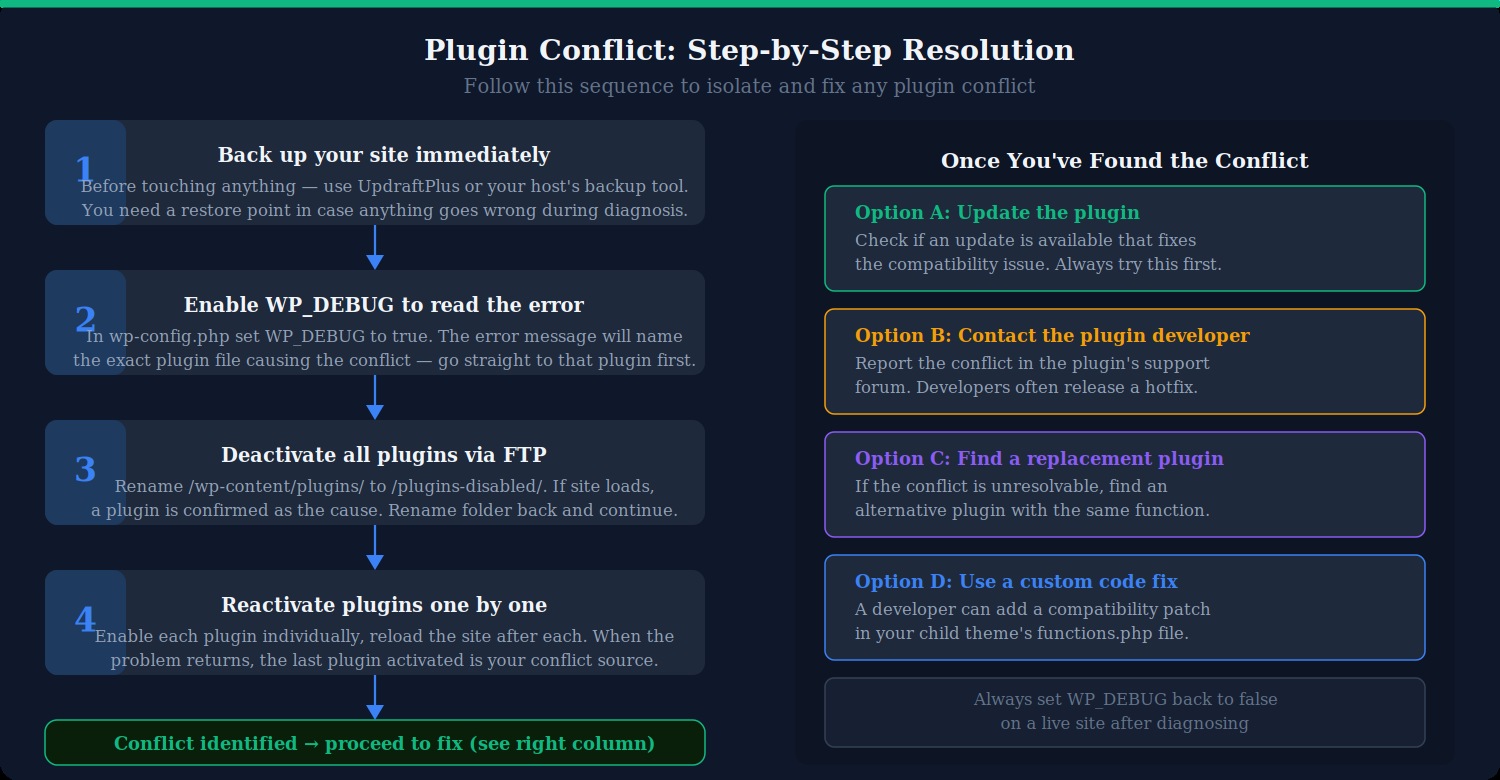
Step 1: Back up your site before you touch anything
This is non-negotiable. Before you begin diagnosis, take a full backup of your site — files and database — using UpdraftPlus, your hosting control panel’s backup tool, or a managed backup service. Diagnosis involves deactivating plugins and temporarily breaking your site further. You need a restore point.
If your site is completely inaccessible and you cannot log into the admin dashboard, your host’s control panel should still allow you to access their backup tools directly.
Step 2: Enable WP_DEBUG to read the error message
WordPress suppresses PHP error messages on live sites by default. Enabling debug mode tells WordPress to display the actual error, which in most cases will name the exact plugin file responsible for the crash.
Connect to your server via FTP or your hosting file manager. Open wp-config.php in the root of your WordPress installation. Find this line:
define( 'WP_DEBUG', false );Change it to:
define( 'WP_DEBUG', true );
define( 'WP_DEBUG_LOG', true );
define( 'WP_DEBUG_DISPLAY', true );
Save and reload the site. If an error message now appears on the white screen or in your browser, read it carefully. It will typically say something like:
Fatal error: Cannot redeclare function_name() (previously declared in /wp-content/plugins/plugin-name/file.php)The plugin named in the error is your conflict source. Skip directly to Step 5 and deal with that plugin specifically. If no error appears on screen, check the log file at wp-content/debug.log.
Important: always set WP_DEBUG back to false once you have finished diagnosing. Error messages visible to site visitors are a security risk.
Step 3: Deactivate all plugins at once via FTP
If the debug error does not name a specific plugin, or if the problem is a JavaScript or CSS conflict rather than a PHP crash, you need to isolate the cause by deactivating everything and rebuilding.
Connect via FTP and navigate to wp-content/. Rename the folder named plugins to plugins-disabled. WordPress will no longer be able to load any plugins at all.
Reload the site. If it now loads — even if it looks unstyled or stripped-back — a plugin is definitively confirmed as the cause. If the problem persists with all plugins disabled, your theme or WordPress core is the issue, not a plugin conflict.
Once confirmed, rename plugins-disabled back to plugins and proceed to the next step.
Step 4: Reactivate plugins one at a time
Now log into your WordPress admin dashboard and go to Plugins. Deactivate all plugins from within the admin (they should all be showing as active after you renamed the folder back). Then reactivate them one at a time, in this suggested order:
- Start with plugins you know are stable and were not recently updated
- Reload and visually check the site after each activation
- Leave the most recently updated plugin or newly installed plugin until last
- When the problem reappears after activating a specific plugin — that is your conflict source
To find the pair causing the conflict (since some conflicts only occur when two specific plugins are both active), keep the identified plugin active and continue reactivating the remaining plugins one by one. If the problem reappears again when a different plugin is activated, you have found both parties in the conflict.
Step 5: Check the browser console for JavaScript conflicts
If the conflict produces broken interactive elements rather than a PHP crash, the resolution is in the JavaScript layer. With all plugins active, open your browser’s developer tools (F12) and navigate to the Console tab. Reload the affected page and look for red error messages.
Common JavaScript conflict errors include:
$ is not defined— a plugin is loading before jQuery is availableTypeError: Cannot read properties of undefined— a script is trying to reference something another script has overriddenUncaught SyntaxError— conflicting scripts have broken each other’s syntax
The error message will include a filename and line number. That filename will match one of your active plugins. Deactivate it and see if the error resolves.
Step 6: Switch to a default theme to rule out theme conflicts
If you have isolated the issue to a specific plugin but it only breaks when your active theme is in use, the conflict is between the plugin and your theme rather than between two plugins. The diagnostic approach is the same: switch temporarily to a WordPress default theme (Twenty Twenty-Four) via Appearance → Themes. If the problem disappears, the conflict is theme-specific.
In this case, contact the plugin developer and your theme developer with the specific details of the conflict. One of them will need to release an update to resolve the incompatibility.
Resolving the Conflict: Four Options
Option A: Update the conflicting plugin
Before anything else, check whether an update is available for the plugin identified as the conflict source. Plugin developers frequently release compatibility patches specifically to resolve conflicts with other popular plugins or new WordPress versions. Navigate to Plugins → Installed Plugins in your dashboard and look for an update notification. If one is available, update it and retest.
If the conflict was triggered by a WordPress core update, all the plugins involved may simply need to be updated to their latest versions to restore compatibility.
Option B: Report the conflict to the plugin developer
If no update is available, report the conflict in the plugin’s official support forum on WordPress.org. Include: the WordPress version, the PHP version, the names and versions of all plugins involved in the conflict, and the exact error message from your debug log. Most actively maintained plugins respond to conflict reports within days and release a hotfix.
While waiting for a fix, you may need to keep one of the conflicting plugins deactivated. Use this window to evaluate whether you actually need both plugins or whether one can be temporarily replaced.
Option C: Replace the plugin
If the conflict is between two plugins that both provide essential functions and neither developer is likely to resolve it quickly, find a replacement for one of them. Search the WordPress plugin repository for alternatives that provide the same functionality. Before installing a replacement, verify:
- It has been updated within the last 6 months
- It is compatible with your current WordPress version
- It has a substantial number of active installations and positive reviews
- The developer responds to support queries in the forum
Option D: Use a custom code fix
In some cases, a plugin conflict can be resolved with a small amount of custom PHP code added to your child theme’s functions.php file. This approach requires developer knowledge and is typically appropriate when:
- You cannot find a suitable replacement for either plugin
- The developer has acknowledged the conflict but a fix is not yet available
- The conflict is a minor CSS or hook-loading issue rather than a fundamental code incompatibility
Common examples include using wp_dequeue_script() to prevent one plugin from loading a conflicting jQuery version, or using remove_action() to prevent a duplicate hook from firing. A developer familiar with WordPress hooks and the WordPress Plugin API can usually resolve these types of conflicts cleanly.
Using the Health Check and Troubleshooting Plugin
WordPress has an official plugin specifically designed for conflict diagnosis: the Health Check and Troubleshooting plugin, available free from WordPress.org. It is particularly useful because it allows you to deactivate all plugins and switch to a default theme for your user session only, without affecting what other visitors see on the live site.
After installing it, go to Tools → Site Health → Troubleshoot. Enable troubleshooting mode. WordPress will now serve you a version of the site with no plugins active and the default theme, while regular visitors continue to see the fully active site. You can then reactivate plugins one by one within this troubleshooting session to identify the conflict, exactly as in Step 4 above — but without taking the live site offline in the process.
This is the recommended approach for diagnosing conflicts on production sites where taking the site fully offline for testing is not acceptable.
How to Prevent Plugin Conflicts
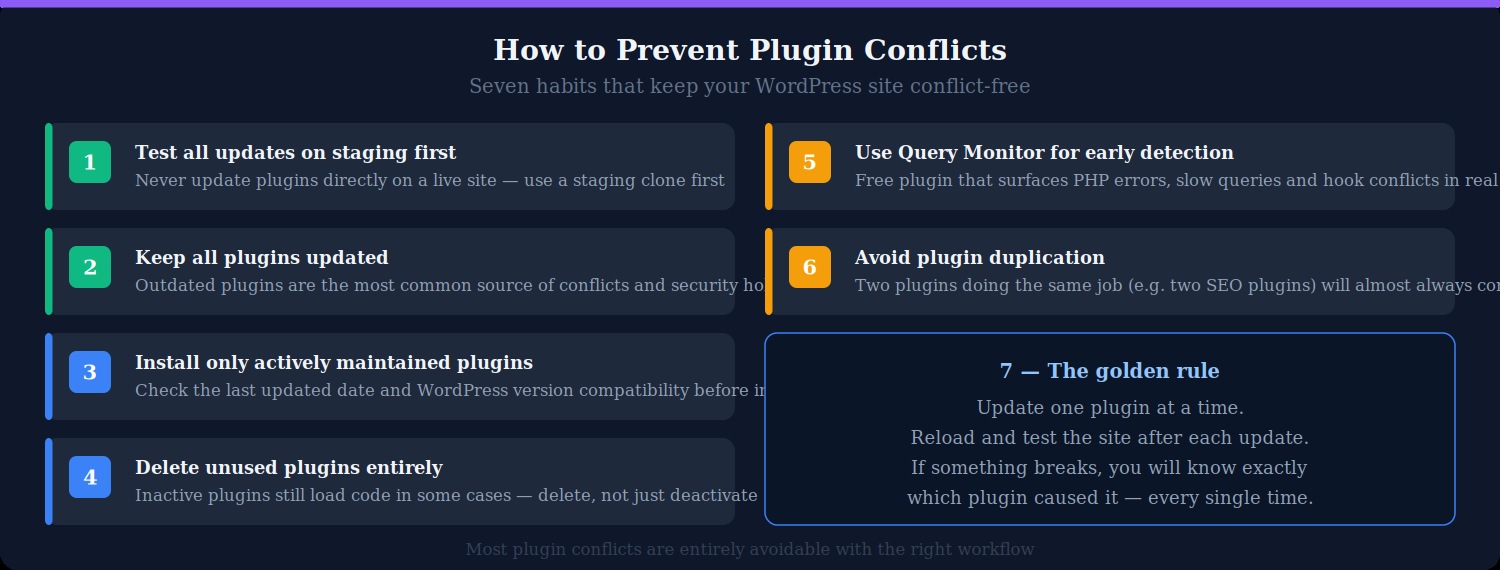
Always test updates on staging first
The single most effective way to prevent plugin conflicts from reaching your live site is to test all updates — plugin, theme, and WordPress core — on a staging site before deploying them to production. Most managed WordPress hosts (SiteGround, WP Engine, Kinsta) provide one-click staging environments. If yours does not, WP Staging is a free plugin that creates a local copy of your site for testing. The few minutes this takes is orders of magnitude cheaper than recovering a crashed production site.
Update one plugin at a time
Never update multiple plugins simultaneously. Update one, reload the site, confirm everything works, then update the next. This makes identifying the source of any conflict trivial — if something breaks, you know exactly which update caused it. Batch-updating all plugins at once converts what would be a straightforward diagnosis into an extensive elimination exercise.
Keep all plugins up to date
Ironically, the most common source of conflicts is not updating plugins. Outdated plugins are the most frequent source of both compatibility issues and security vulnerabilities. Run a weekly check on your plugins list and update anything flagged as having an available update — on staging first, then live.
Only install actively maintained plugins
Before installing any plugin, check three things on its WordPress.org listing: the date it was last updated (should be within the past six months), the WordPress version it is confirmed compatible with (should match your current version), and whether the developer responds to support queries in the forum. Abandoned plugins are a major source of conflicts as they fall out of sync with WordPress core updates.
Delete unused plugins entirely
Deactivating a plugin removes it from your active stack, but some poorly coded plugins load code even when deactivated. Delete any plugin you are not actively using. The WordPress codebase is simpler, the potential for conflicts is lower, and your site is more secure.
Avoid plugin duplication
Two plugins attempting to do the same job will almost always conflict. Two SEO plugins, two caching plugins, two form plugins — they will try to register the same hooks, define the same functions, and load conflicting assets. Before installing a new plugin, check whether any of your existing plugins already cover that functionality, even partially.
Use Query Monitor for ongoing monitoring
The free Query Monitor plugin provides a developer panel on every page of your site showing PHP errors, database queries, HTTP requests, and hook loading — in real time, without enabling debug mode site-wide. Running it periodically allows you to spot emerging conflicts before they become site-breaking problems.
When to Call a Developer
Most plugin conflicts can be resolved by a non-technical site owner following the steps above. However, there are situations where a developer’s involvement will save significant time and frustration:
- The conflict involves a custom or premium plugin with no public support forum
- The conflict is between a plugin and custom code in your theme
- The error message references core WordPress functions in a way that suggests a deeper compatibility issue
- The conflict only occurs under specific conditions — certain user roles, certain page templates, or certain device types — making it difficult to reproduce consistently
- You have tried all four resolution options and the conflict persists
In these cases, provide the developer with your debug log, the names and versions of all plugins involved, and a precise description of when the problem occurs. The more specific your documentation, the faster the resolution.
Summary
Plugin conflicts are a normal part of running a WordPress site, but they do not have to be a crisis. The moment a conflict appears, your first actions are always the same: back up the site, enable debug mode to read the error, and use the deactivation and reactivation process to isolate the source. Once identified, the fix is almost always one of four things — an update, a support request, a replacement, or a custom code patch.
The best strategy, however, is prevention. Testing updates on staging, updating one plugin at a time, keeping everything current, and removing anything unused removes the vast majority of conflict risk before it ever reaches your live site.
At Matrix Internet, our technical support team helps businesses find and fix broken links quickly — auditing your site, setting up the right redirects, and putting monitoring in place to stop dead links from damaging your SEO and user experience.
FAQs
Broken links hurt your SEO in two ways. First, they waste crawl budget — when Googlebot follows a dead link, it uses up its crawl allocation on a 404 page instead of indexing your live content. Second, they interrupt the flow of link equity through your site, meaning pages that should be passing authority to other pages are passing it nowhere instead. Sites with a high number of broken links are also seen as poorly maintained, which can negatively influence how Google evaluates the overall quality of your domain.
An internal broken link points from one page on your site to another page on your site that no longer exists — typically caused by deleting a page or changing its URL without setting up a redirect. An external broken link points from your site to a page on another website that has since been removed or restructured. Both types should be fixed, but internal broken links are the higher priority because they directly affect your crawl budget, link equity,
Google Search Console is the best starting point — it is free, already crawling your site, and its Pages report shows every URL returning a 404 along with the pages linking to it. For a more thorough audit, Screaming Frog SEO Spider (free for up to 500 URLs) crawls your entire site and lists every broken internal and external link in one report. For WordPress sites, the Broken Link Checker plugin monitors your content continuously in the background and alerts you by email when new broken links are found.
A 301 redirect is a permanent redirect that automatically sends visitors and search engines from an old URL to a new one. You should use a 301 redirect any time you delete a page, change a page's URL, or restructure your site — rather than simply removing the old URL and leaving it to return a 404 error. A 301 redirect preserves the link equity (PageRank) that the original URL had built up and ensures that anyone who had bookmarked or linked to the old URL is seamlessly sent to the correct page instead.
By Matrix Internet


