

BLOG
How to Fix Slow Page Load Speeds
4 min read
Matrix is proud to join PACE, now launched in Moldova. The Erasmus+ project strengthens youth organisations across the region with training, digital resources and collaboration to support displaced Ukrainian young people.
A slow website costs you visitors, rankings, and revenue. Research consistently shows that most users abandon a page that takes more than 3 seconds to load, and Google uses page speed as a ranking signal.
Here are the most common reasons for a slow website:
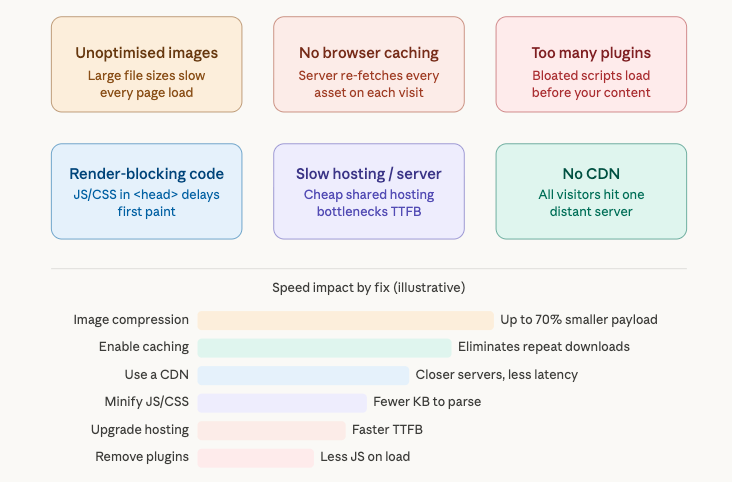
This infographic identifies the six most common reasons websites load slowly, paired with a visual breakdown of how much each fix can improve performance.
The good news: the fixes are well-understood, and most can be done today without a developer.
Step 1 — Measure first, fix second
Before touching anything, get a baseline. Use these free tools:
Google PageSpeed Insights (pagespeed.web.dev) — scores your page on mobile and desktop and lists specific issues to fix
GTmetrix — gives a waterfall chart showing exactly which assets load slowly
WebPageTest — advanced diagnostics including Time to First Byte (TTFB) and Core Web Vitals
Note your scores. You’ll use these to confirm your fixes are working.
Step 2 — Optimise your images
Images are almost always the biggest culprit. A single uncompressed hero image can be 4–6 MB — larger than everything else on the page combined.
What to do:
Compress images before uploading. Tools like Squoosh (squoosh.app) or TinyPNG reduce file size by 60–80% with no visible quality loss.
Use modern formats. WebP is roughly 30% smaller than JPEG at the same quality. Most browsers support it now.
Set correct dimensions. Don’t upload a 3000px wide image and shrink it with CSS. Resize it to the actual display size first.
Add lazy loading. Add loading=”lazy” to any <img> tag below the fold. This tells the browser not to load those images until the user scrolls toward them.
Step 3 — Enable browser caching
When caching is configured, returning visitors load your site from their local machine instead of downloading everything from your server again. This can cut load times to under a second for repeat visitors.
On Apache servers, add these lines to your .htaccess file:
<IfModule mod_expires.c>
ExpiresActive On
ExpiresByType image/jpeg “access plus 1 year”
ExpiresByType image/png “access plus 1 year”
ExpiresByType text/css “access plus 1 month”
ExpiresByType application/javascript “access plus 1 month”
</IfModule>
On Nginx, add this to your server block:
location ~* \.(jpg|jpeg|png|gif|css|js|woff2)$ {
expires 1y;
add_header Cache-Control “public”;
}
On WordPress, plugins like WP Rocket or W3 Total Cache handle this without touching server config files.
Step 4 — Fix render-blocking JavaScript and CSS
“Render-blocking” means the browser stops building the page to download and execute a script. Every millisecond it waits is a millisecond your visitor sees a blank screen.
CSS: Load critical styles inline in the <head>. Defer non-critical stylesheets using media=”print” with JavaScript:
<link rel=”stylesheet” href=”non-critical.css” media=”print” onload=”this.media=’all'”>
JavaScript: Add defer or async to script tags that don’t need to run immediately:
HTML
<script src=”analytics.js” defer></script>
defer loads the script in the background and runs it after the page is parsed. async loads and runs it as soon as it’s ready — use this for scripts that don’t depend on the DOM.
Step 5 — Minify CSS, JavaScript, and HTML
Minification removes whitespace, comments, and unused code from your files. It won’t feel dramatic, but across an entire page it shaves 10–30% off your asset sizes.
Online tools: CSS Minifier, JSCompress, HTML Minifier
Build tools: If you use a bundler like Webpack or Vite, enable minification in production mode — it’s usually a single config flag
WordPress: Plugins like Autoptimize or LiteSpeed Cache minify and combine files automatically
Step 6 — Use a Content Delivery Network (CDN)
A CDN stores copies of your static assets (images, CSS, JavaScript) on servers around the world. When a visitor loads your page, they download assets from the nearest server rather than your origin host, reducing latency by hundreds of milliseconds for distant visitors.
Free and affordable CDN options:
Cloudflare — free tier covers most small sites, also adds security features
BunnyCDN — cheap, fast, pay-as-you-go
KeyCDN — developer-friendly, straightforward pricing
Setup usually takes less than an hour and involves updating your DNS or installing a plugin.
Step 7 — Reduce server response time (TTFB)
Time to First Byte (TTFB) is how long it takes your server to start responding. If it’s above 600ms, your hosting is likely the bottleneck. PageSpeed Insights flags this as “Reduce server response times.”
Fixes:
-
- Enable server-side caching. For WordPress, Redis or Memcached caches database queries so pages are served from memory rather than rebuilt on every request.
- Upgrade your hosting. Shared hosting puts your site on the same server as hundreds of others. A managed WordPress host (like Kinsta or WP Engine) or a VPS will significantly reduce TTFB.
- Enable HTTP/2 or HTTP/3. These protocols allow multiple files to download simultaneously. Check your host’s control panel — most enable it with a single click.
Step 8 — Audit and remove unnecessary plugins
On WordPress sites, every active plugin adds JavaScript and CSS to your page — even if that plugin is only used on one admin screen. A bloated plugin list is one of the most common causes of poor scores on shared hosting.
Audit process:
-
- List every active plugin
- For each one, ask: is this actively used? Could a simpler solution replace it?
- Deactivate plugins one at a time and re-run PageSpeed Insights after each removal
- Delete anything you deactivate — inactive plugins still pose a security risk
The Query Monitor plugin for WordPress shows you exactly which plugins are loading scripts on any given page.
Quick-win checklist
| Fix | Difficulty | Impact |
|---|---|---|
| Compress images | Easy | Very high |
Add loading="lazy" to images |
Easy | High |
| Enable browser caching | Easy–Medium | High |
| Minify CSS and JS | Easy (with plugin) | Medium |
Add defer to scripts |
Medium | Medium |
| Set up a CDN | Medium | High |
| Upgrade hosting | Easy (but costs money) | High |
| Remove unused plugins | Easy | Medium–High |
What to aim for
After applying these fixes, your target scores on Google PageSpeed Insights should be:
- Mobile: 70+ (good), 90+ (excellent)
- Desktop: 85+ (good), 95+ (excellent)
- TTFB: Under 600ms
- Largest Contentful Paint (LCP): Under 2.5 seconds
Start with image optimisation and caching — these two changes alone will move the needle more than everything else combined on most sites.
🏁 Conclusion
Improving page speed isn’t about one big fix—it’s about stacking multiple small optimisations that together create a fast, smooth user experience. From compressing images and enabling caching to reducing server response times, each step moves your site closer to better performance, higher rankings, and improved conversions.
Start with the high-impact wins like image optimisation and caching, then work your way through scripts, hosting, and plugins. Even a few of these changes can significantly reduce load times and keep visitors engaged.
If you’d rather not handle the technical side yourself, working with professionals can save time and ensure everything is implemented correctly. Matrix Internet Website Development Agency, based in Dublin, provides reliable website technical support and performance optimisation services to help businesses keep their sites fast, secure, and running at their best.
By Matrix Internet